add-circle-bold add-circle add-square add alarm-bell-1 alert-diamond analytics-pie-2 archive archive arrow-down-1 arrow-down-2 arrow-left-1 arrow-right-1 arrow-up-1 attachment-1 bin-paper-1 book-star button-record check-1 check-circle-1 close close-quote close cog-1 cog common-file-stack copy-paste credit-card-1 diagram-fall-down disable time-clock-midnight download-thick-bottom drawer-send envelope-letter envelope-letter expand-6 expand-6 file-code filter-1 floppy-disk flying-insect-honey folder-file-1 headphones-customer-support hierarchy-9 hyperlink-2 information-circle keyboard-arrow-down keyboard-arrow-up layout-module-1 list-bullets lock-2 lock-unlock-1 love-it messages-bubble-square move-to-top multiple-circle multiple-neutral-1 multiple-users-1 navigation-menu-horizontal navigation-menu network-browser open-quote pencil-1 pencil-write pencil-1 print-text rating-star rating-star remove-circle remove-square-1 search send-email-1 shield-warning single-neutral-actions single-neutral smiley-sad-1 smiley-unhappy smiley-indifferent smiley-smile-1_1 smiley-happy smiley-sad-1 smiley-unhappy smiley-indifferent smiley-happy smiley-thrilled social-media-twitter synchronize-arrows-1 tags-double ticket-1 ticket-1 time-clock-circle undo view-1 view-off view wench

Coordinators: How to Change Details in a Reported Activity (i.e. materials used, dates, etc.)

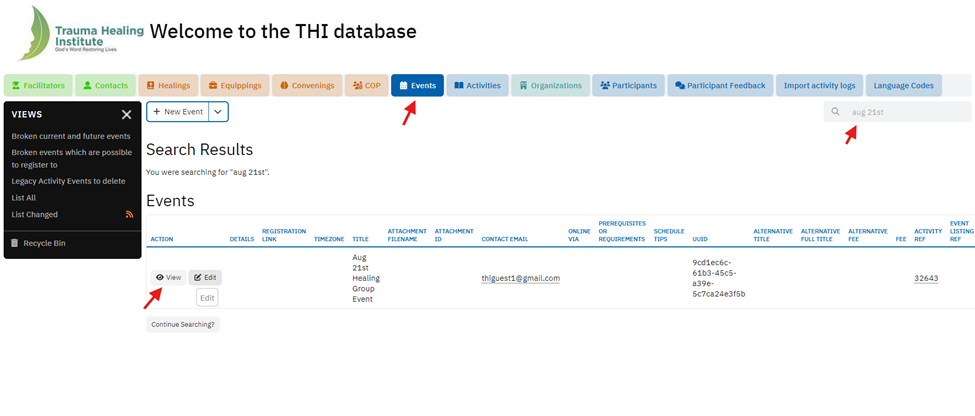
Step 1: To change details in a reported activity associated with an event, you first need to locate your event. Log in to the THI Database, navigate to the "Event" tab, and use the search bar to find your event. You can search by keywords like the event title or location to make it easier to locate.

Step 2: Once located, open the event record in edit mode. One way to do this by the search results. From the search results, find the event and click “Edit” to open the record directly in edit mode.
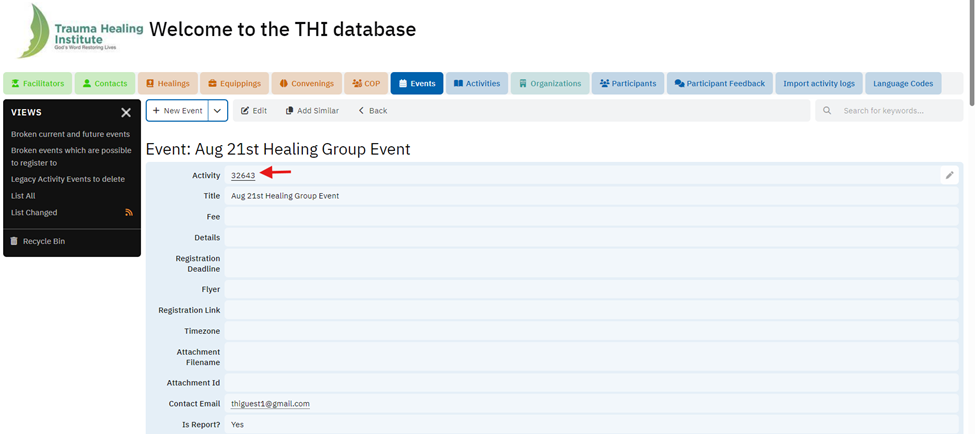
Step 3: Within the event record, locate the activity reference number for the specific activity you need to update, and click it to open the activity record.


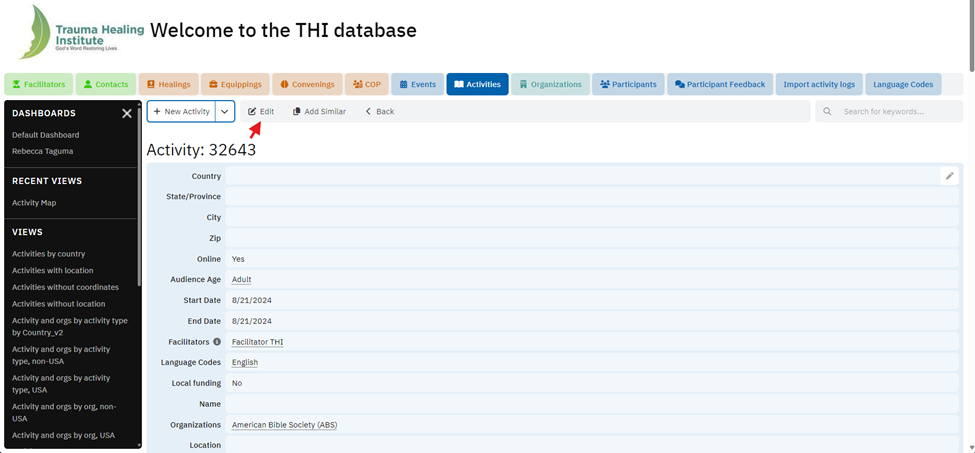
Step 4: Once you click “Edit” to make changes to the activity record, update the necessary fields in the activity record. For text fields, type in the updated information, and for drop-down menus or linked fields, select or search for the correct options. Double-check all updates for accuracy.


Step 5: Once you've made the necessary updates, click “Save” to apply your changes. Double-check the record to confirm the updates are reflected correctly.