
Step 1: To run a report for a specific organization, click the “Organizations” tab in the top navigation bar. For an easier search, use the “Organization by Country” view to filter organizations by their respective countries.
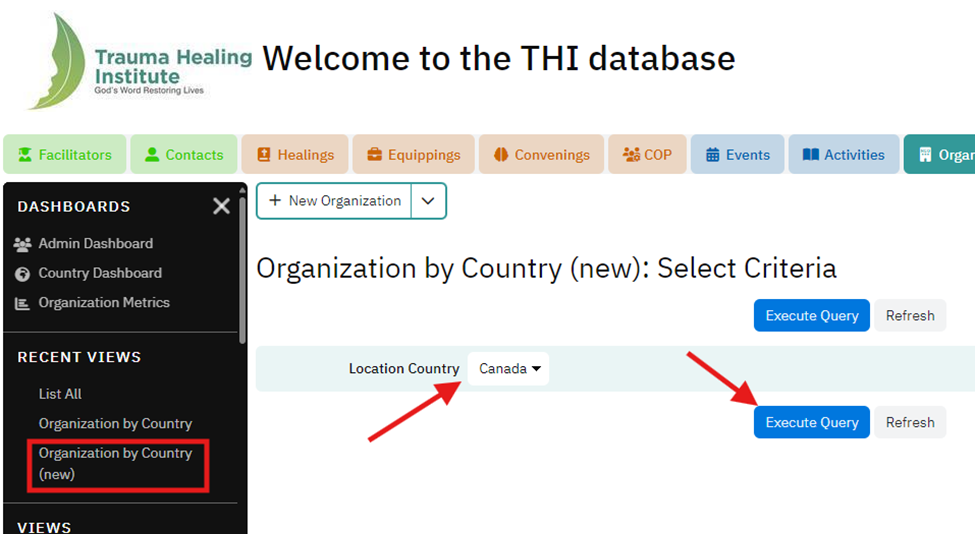
Step 2: To generate a report listing organizations by country, select the “Organization by Country” table view. Use the dropdown menu to choose the appropriate country, then click “Execute Query.”
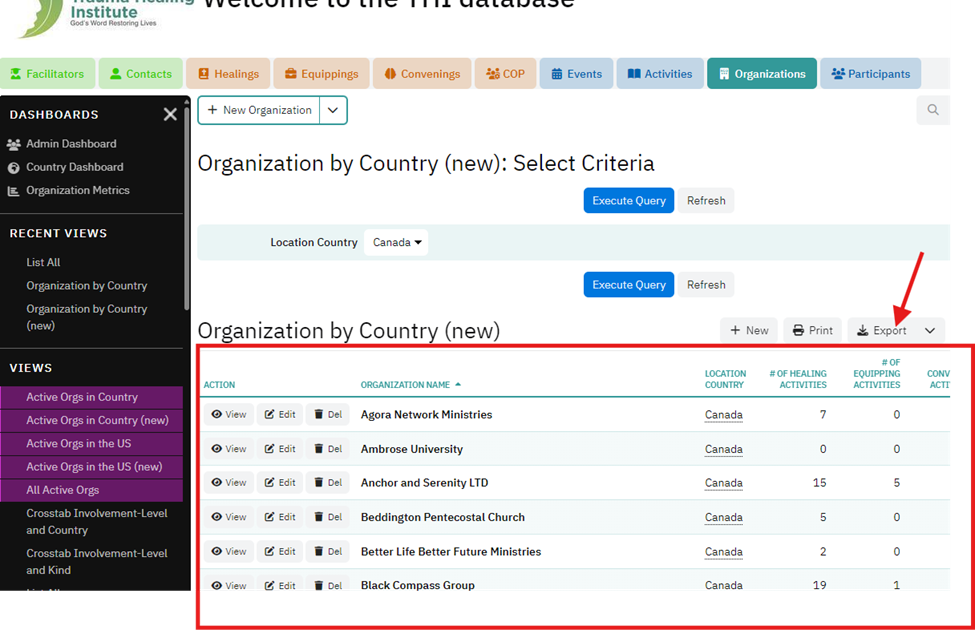
Step 3: To view or run a report on “People” or “Activities” associated with an organization:
- Click “View” next to the organization you wish to select.
- On the organization’s record page, scroll down to find table options such as “People” or “Activities.” These options display details associated with the selected organization.
- For example, if you want to review Activities, click the corresponding tab. This will display activities such as healing groups, equipping sessions, or other types of events linked to the organization.
- Note: You may need to click “More” to access additional table view options. (Refer to the screenshot for guidance).
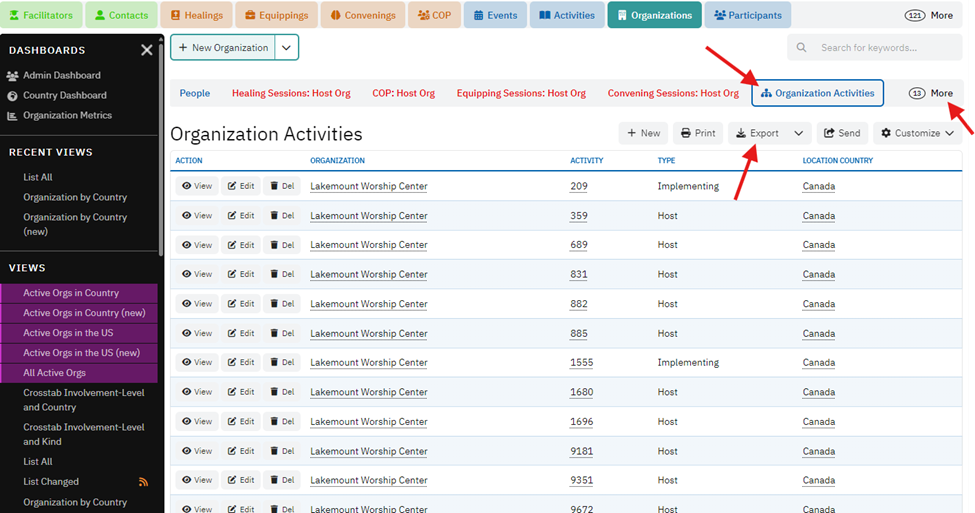
Step 4: To export organization-related data (e.g., “Organization Activities”), click the “Export” button on the relevant table view (e.g., Activities). Select the appropriate file format and proceed with the download.
Note: When exporting activity data, some reports may show activity types as numbers instead of names (e.g., Healing Groups or Equipping Sessions). If this happens, use the Activity Code Key in the system to match numbers with activity names, or try another report like Healing Sessions or Equipping Sessions for other relevant details you may need.