
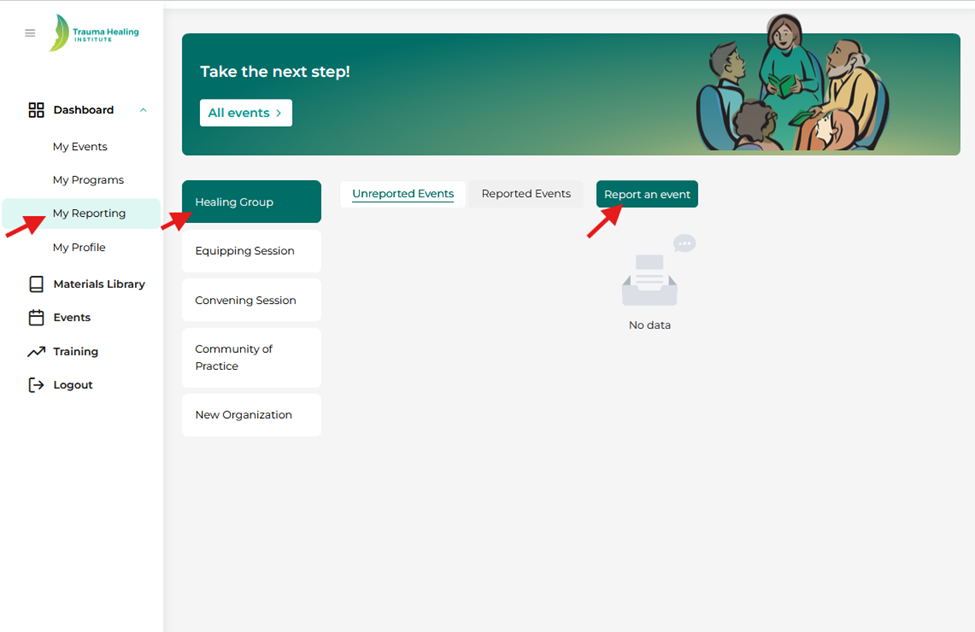
Step 1: There are two paths for reporting below:
- For events not posted on the events page: Click "My Reporting," then "Healing Group," and finally "Report an Event."
- For events posted on the events page: Your activity will automatically appear under "Unreported Events" after the event is completed.
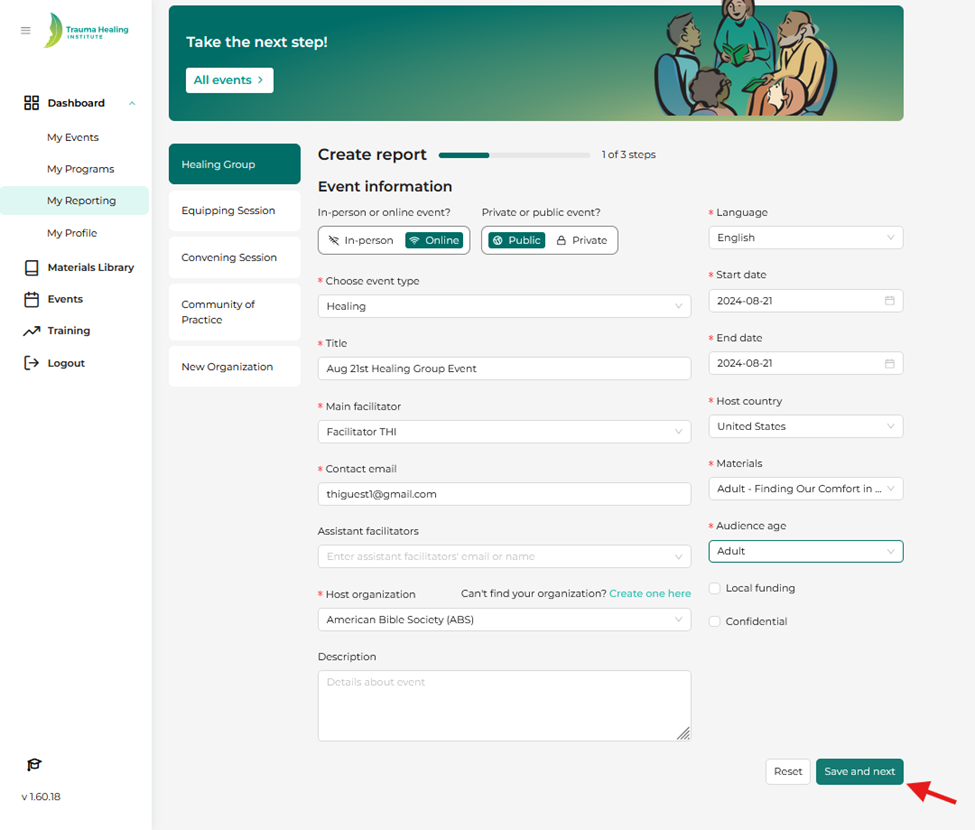
Step 2: For Step 1 of 3, provide required details about the event, such as the title, facilitator(s), organization, etc.:
- Title: create a customized title to describe your event. For example: “Women’s Thursday Evening Healing Group”
- Organization: you can only add one organization at this time. To find your organization, begin typing its title and then select it. If your organization does not appear after searching, click “can’t find your organization? Create one here.”
Once all information is entered, click "Save and Next".
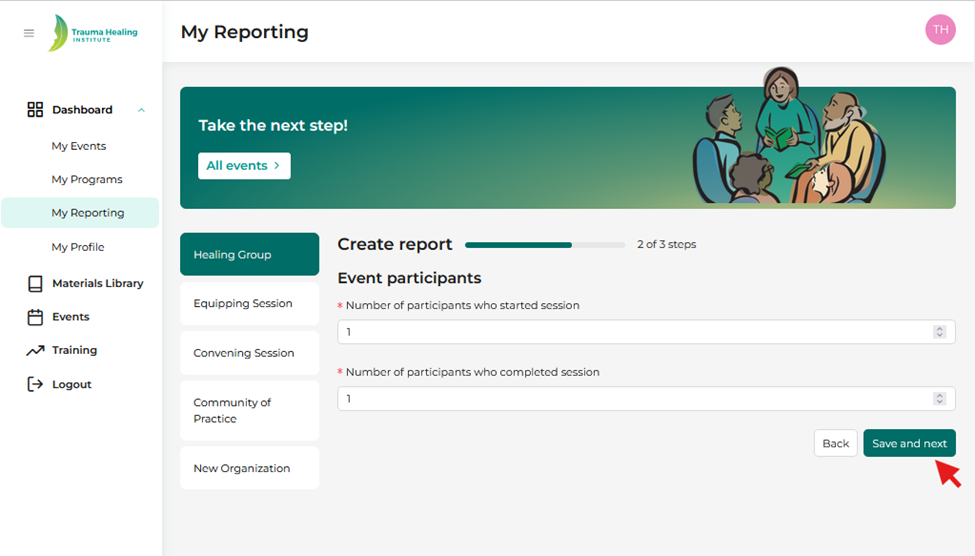
Step 3: Fill out the event participants information step 2 of 3 and click “Save and next”.
Step 4: Fill out the other information step 3 of 3. Please utilize the “Audience” field, as it provides context for what primary audience is attending your event. Click “Save and next” once complete.
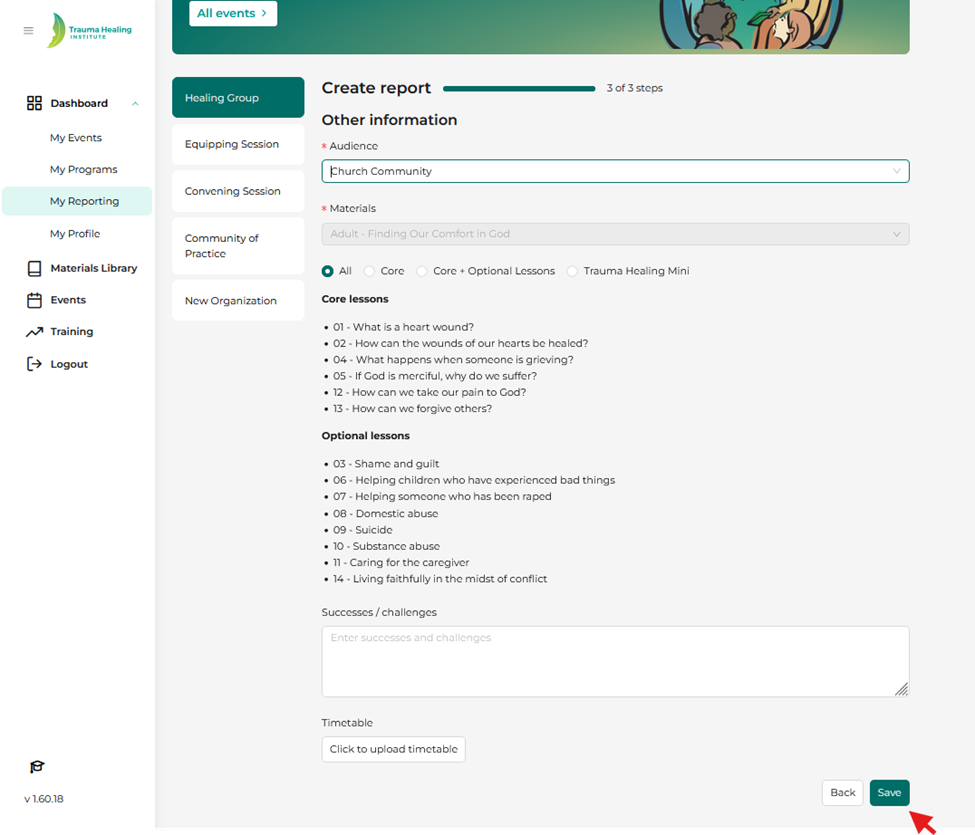
Step 5: After saving, the report will move to your "Reported Events" tab. Please remember that reports cannot be edited after submission. Double-check all information, including participant counts, facilitator names, and organization details, before saving.